Skip to content

Desk And Stream

Level up your setup

Primary Menu
  • Home
  • Articles
  • Reviews
  • Guides
  • Home
  • Guides
  • How to Set Up a Logitech Webcam in OBS Studio: A Complete 2025 Guide
  • Guides

How to Set Up a Logitech Webcam in OBS Studio: A Complete 2025 Guide

Published: July 21, 2025 | Updated: July 21, 2025 2 min read
236 views
30b1a102-8e95-44a5-8c08-d56c145fe77a

Whether you’re preparing for a professional video call, live stream, or content recording, configuring your Logitech webcam properly within OBS Studio is essential. This guide walks you through the process to help you get the best video performance out of your setup.


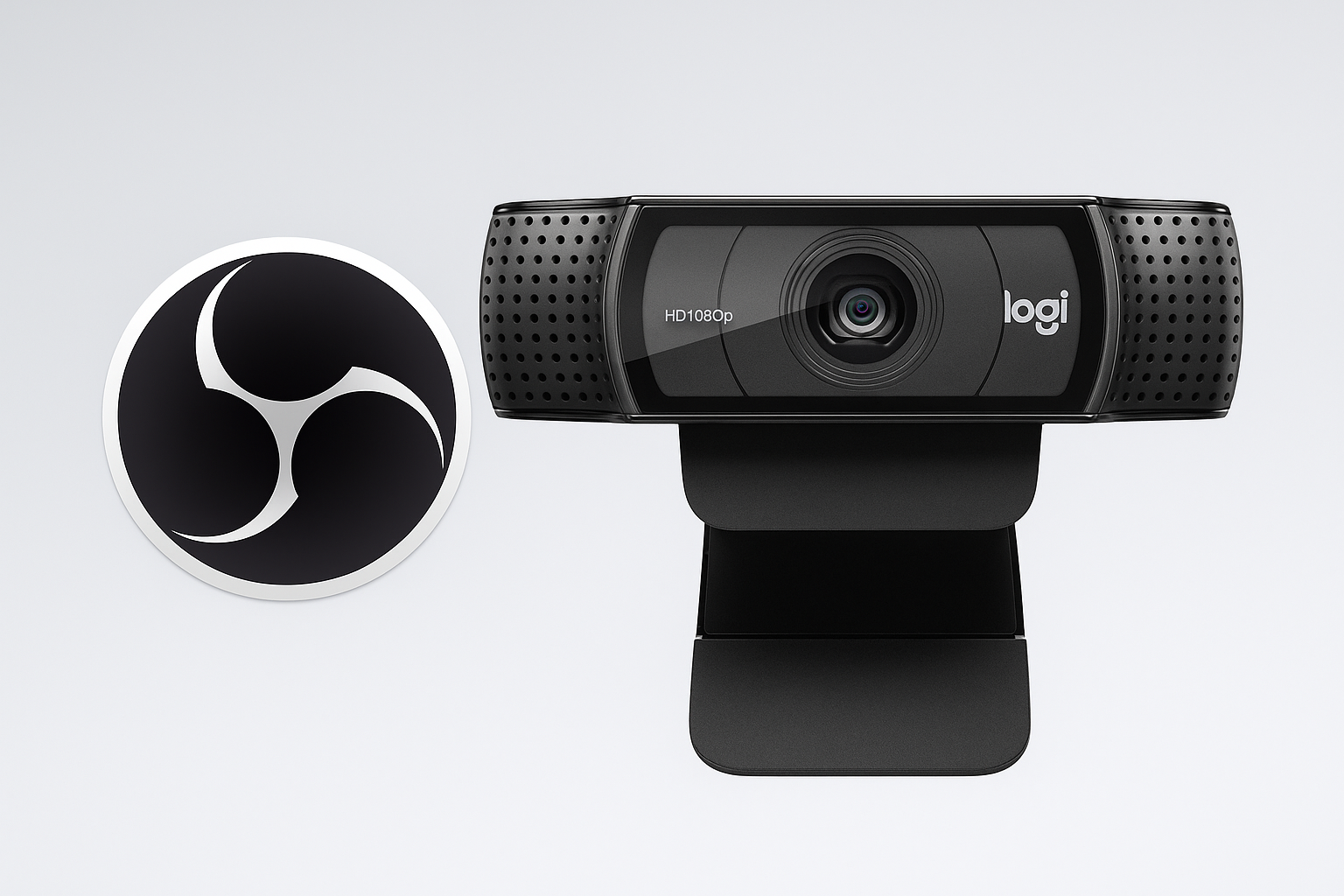
Recommended Logitech Webcams

  • Logitech C920 HD Pro Webcam – A solid choice for Full HD streaming and meetings

  • What You’ll Need

    • One of the webcams above
    • OBS Studio (latest version)
    • Windows or macOS computer
    • Stable USB connection (USB 3.0 recommended for 4K)

    Step 1: Install Logitech Software (Optional but Recommended)

    To gain access to advanced settings and firmware updates, download one of the following:

    • Logitech G HUB – Ideal for gaming-focused webcams
    • Logi Tune – Great for business environments and quick tuning

    Step 2: Connect and Verify Your Webcam

    1. Plug your webcam into an available USB port.
    2. Confirm the device is detected:
      • Windows: Open Device Manager → Imaging Devices
      • macOS: Use QuickTime or FaceTime to verify

    Step 3: Install and Launch OBS Studio

    If not already installed, download it here:

    Download OBS Studio


    Step 4: Add Your Webcam as a Source

    1. Open OBS Studio
    2. Click the + icon in the Sources panel
    3. Select Video Capture Device
    4. Name it (e.g., “Logitech Webcam”) and click OK
    5. In the Device dropdown, select your webcam
    6. Click OK to confirm

    Step 5: Set Custom Resolution and FPS

    1. Right-click your webcam source → Properties
    2. Under Resolution/FPS Type, choose Custom
    3. Set resolution:
      • 1920×1080 for Full HD
      • 1280×720 for faster streaming
    4. Choose 30 or 60 FPS depending on your system and bandwidth

    Step 6: Configure Audio (If Using Webcam Mic)

    1. Go to Settings > Audio
    2. Select the webcam’s mic from the dropdown under Mic/Auxiliary Audio
    3. Use the Audio Mixer to adjust gain or mute

    Note: For serious content or streaming, consider a separate USB mic for improved sound quality.


    Step 7: Position and Crop the Feed

    • Click and drag the source in OBS to move it
    • Use corners to resize
    • Hold Alt (or Option on Mac) while dragging edges to crop

    Step 8: Run a Test

    • Click Start Recording to verify sync, lighting, and quality
    • Make any final adjustments to framing and exposure

    Final Thoughts

    A proper webcam setup in OBS Studio starts with quality hardware and ends with fine-tuned software control. With Logitech’s lineup and OBS’s flexibility, your stream or call can easily reach professional standards.

    Need help picking the best gear? Explore more in our Gear Guides.
    About the Author

    deskandstream

    Administrator

    Visit Website View All Posts
    • Guides

    Post navigation

    Previous: The Best 1440p Gaming Monitors for Peak Performance in 2025
    Next: The Ultimate Visual Upgrade: Best 4K Monitors for 2025

Related Stories

anker-555-usb-c-hub-guide-calmer-workflow-with-samsung-t7-shield-cover-v1
  • Guides

Anker 555 USB-C Hub Guide: How to Dock a Laptop Without Cable Clutter with Samsung T7 Shield Portable SSD

June 21, 2026 70
rode-nt-usb-mini-guide-cleaner-calls-with-lift-vertical-cover-v1
  • Guides

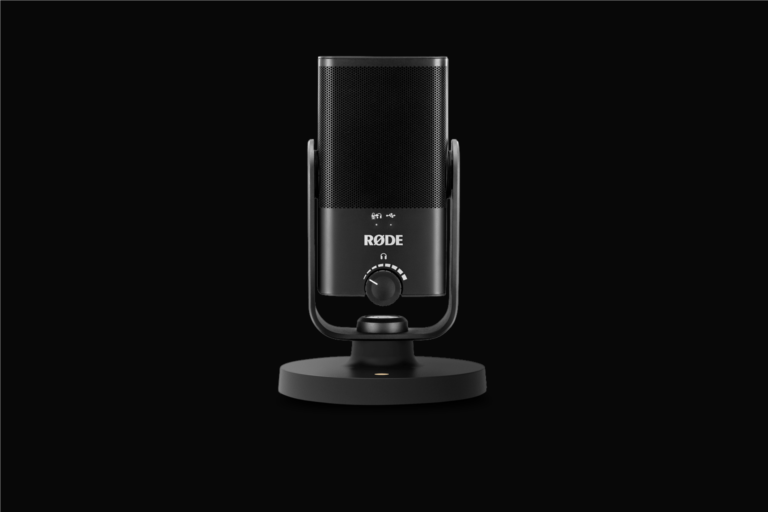
RODE NT-USB Mini Guide: How to Set It Up for Better Calls and Clearer Voice

June 20, 2026 65
pebble-keys-2-guide-calmer-workflow-with-crucial-x9-pro-cover-v1
  • Guides

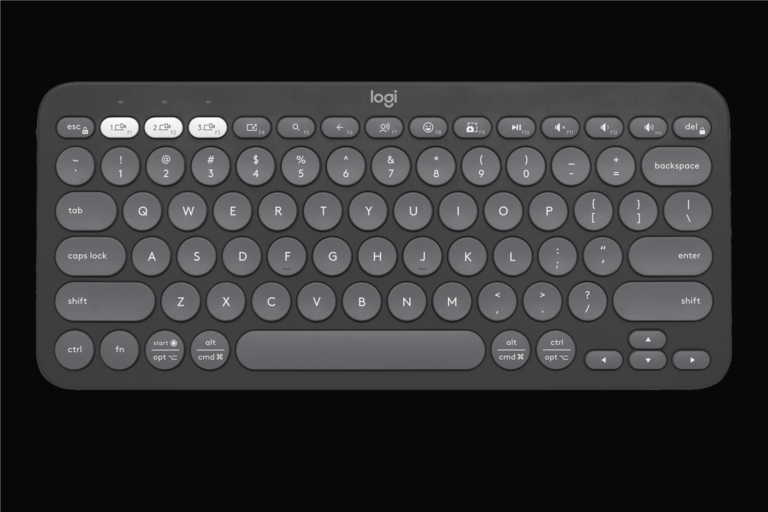
Logitech Pebble Keys 2 K380s Guide: How to Set It Up on a Small Desk Without Cramping the Space with Crucial X9 Pro

June 21, 2026 65
macbook-air-m4-guide-cleaner-calls-with-benq-screenbar-halo-cover-v1
  • Guides

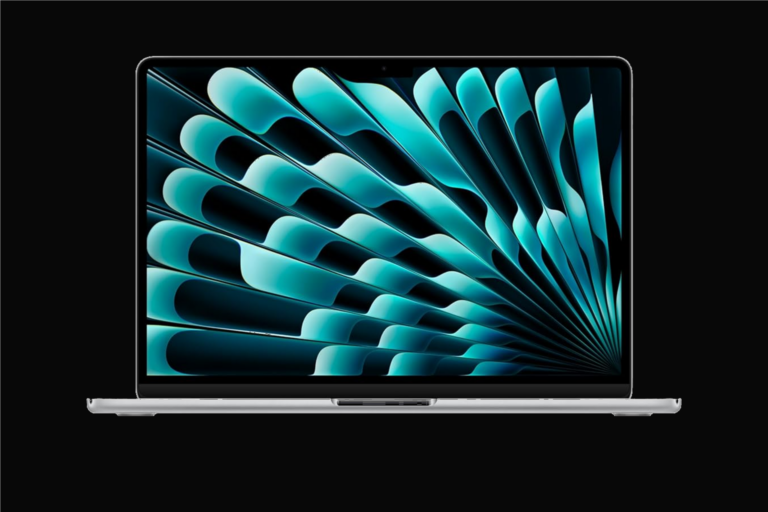
MacBook Air M4 Guide: How to Keep the Setup Clean and Easy to Use

June 20, 2026 69
mx-master-3s-guide-calmer-workflow-with-anker-555-usb-c-hub-cover-v1
  • Guides

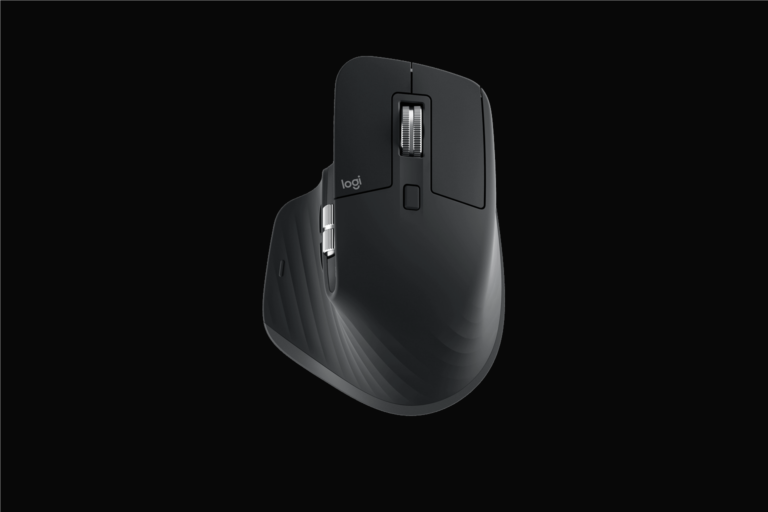
Logitech MX Master 3S Guide: How to Set It Up for Better All-Day Desk Work with Anker 555 USB-C Hub

June 21, 2026 87
pebble-keys-2-guide-cleaner-calls-with-rode-nt-usb-mini-cover-v1
  • Guides

Logitech Pebble Keys 2 K380s Guide: How to Set It Up on a Small Desk Without Cramping the Space with RODE NT-USB Mini

June 21, 2026 78

Trending Now

Elgato Stream Deck MK.2 Review: A Cleaner Way to Run Scenes and Shortcuts with Keychron K2 HE elgato-stream-deck-mk2-review-stream-ready-with-keychron-k2-he-cover-v1 1

Elgato Stream Deck MK.2 Review: A Cleaner Way to Run Scenes and Shortcuts with Keychron K2 HE

June 28, 2026
SteelSeries Arctis Nova 5 + 8BitDo Ultimate 2 Wireless for Multi-Platform Play steelseries-arctis-nova-5-and-eightbitdo-ultimate-2-wireless-article-multi-platform-play-cover-v1 2

SteelSeries Arctis Nova 5 + 8BitDo Ultimate 2 Wireless for Multi-Platform Play

June 27, 2026
Shure MV7 and MX Keys Mini: Better Audio and Smoother Desk Work for Calmer Work shure-mv7-and-mx-keys-mini-article-calmer-workflow-cover-v1 3

Shure MV7 and MX Keys Mini: Better Audio and Smoother Desk Work for Calmer Work

June 27, 2026
Brio 500 and BenQ ScreenBar Halo: Better Calls and Better Desk Light for Small Desks brio-500-and-benq-screenbar-halo-article-small-desk-cover-v1 4

Brio 500 and BenQ ScreenBar Halo: Better Calls and Better Desk Light for Small Desks

June 27, 2026

You may have missed

elgato-stream-deck-mk2-review-stream-ready-with-keychron-k2-he-cover-v1
  • Review

Elgato Stream Deck MK.2 Review: A Cleaner Way to Run Scenes and Shortcuts with Keychron K2 HE

June 28, 2026 77
steelseries-arctis-nova-5-and-eightbitdo-ultimate-2-wireless-article-multi-platform-play-cover-v1
  • Article

SteelSeries Arctis Nova 5 + 8BitDo Ultimate 2 Wireless for Multi-Platform Play

June 27, 2026 86
shure-mv7-and-mx-keys-mini-article-calmer-workflow-cover-v1
  • Article

Shure MV7 and MX Keys Mini: Better Audio and Smoother Desk Work for Calmer Work

June 27, 2026 84
brio-500-and-benq-screenbar-halo-article-small-desk-cover-v1
  • Article

Brio 500 and BenQ ScreenBar Halo: Better Calls and Better Desk Light for Small Desks

June 27, 2026 66
  • Terms Of Service
  • Privacy Policy
Copyright © 2026 All rights reserved.