Whether you’re preparing for a professional video call, live stream, or content recording, configuring your Logitech webcam properly within OBS Studio is essential. This guide walks you through the process to help you get the best video performance out of your setup.
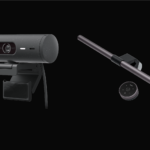
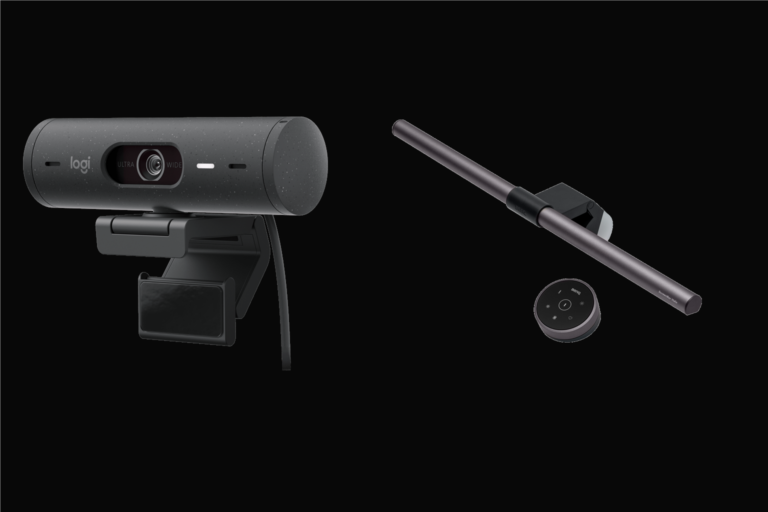
Recommended Logitech Webcams
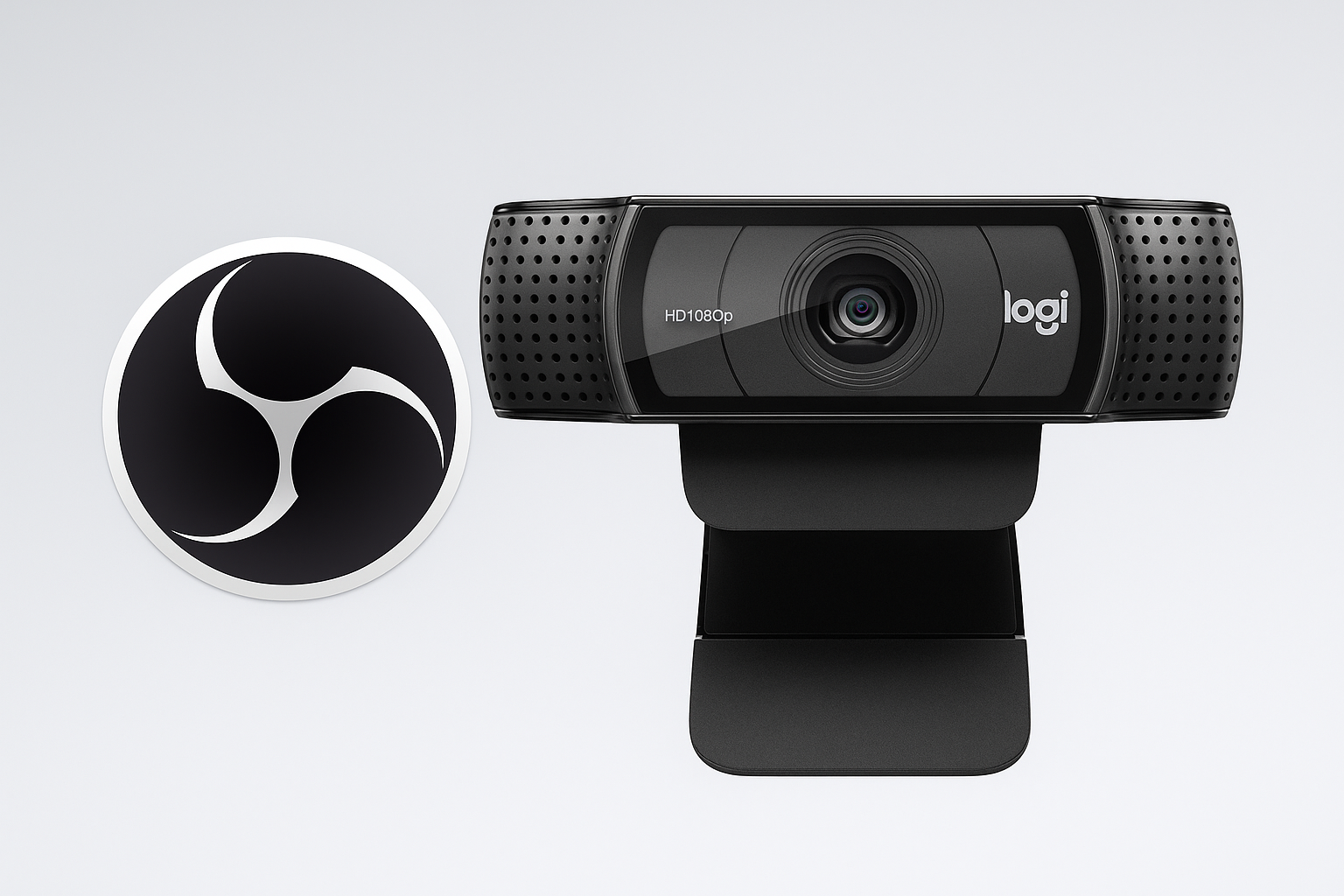
- Logitech C920 HD Pro Webcam – A solid choice for Full HD streaming and meetings
- One of the webcams above
- OBS Studio (latest version)
- Windows or macOS computer
- Stable USB connection (USB 3.0 recommended for 4K)
- Logitech G HUB – Ideal for gaming-focused webcams
- Logi Tune – Great for business environments and quick tuning
- Plug your webcam into an available USB port.
- Confirm the device is detected:
- Windows: Open Device Manager → Imaging Devices
- macOS: Use QuickTime or FaceTime to verify
- Open OBS Studio
- Click the + icon in the Sources panel
- Select Video Capture Device
- Name it (e.g., “Logitech Webcam”) and click OK
- In the Device dropdown, select your webcam
- Click OK to confirm
- Right-click your webcam source → Properties
- Under Resolution/FPS Type, choose Custom
- Set resolution:
- 1920×1080 for Full HD
- 1280×720 for faster streaming
- Choose 30 or 60 FPS depending on your system and bandwidth
- Go to Settings > Audio
- Select the webcam’s mic from the dropdown under Mic/Auxiliary Audio
- Use the Audio Mixer to adjust gain or mute
- Click and drag the source in OBS to move it
- Use corners to resize
- Hold Alt (or Option on Mac) while dragging edges to crop
- Click Start Recording to verify sync, lighting, and quality
- Make any final adjustments to framing and exposure
What You’ll Need
Step 1: Install Logitech Software (Optional but Recommended)
To gain access to advanced settings and firmware updates, download one of the following:
Step 2: Connect and Verify Your Webcam
Step 3: Install and Launch OBS Studio
If not already installed, download it here:
Step 4: Add Your Webcam as a Source
Step 5: Set Custom Resolution and FPS
Step 6: Configure Audio (If Using Webcam Mic)
Note: For serious content or streaming, consider a separate USB mic for improved sound quality.
Step 7: Position and Crop the Feed
Step 8: Run a Test
Final Thoughts
A proper webcam setup in OBS Studio starts with quality hardware and ends with fine-tuned software control. With Logitech’s lineup and OBS’s flexibility, your stream or call can easily reach professional standards.
Need help picking the best gear? Explore more in our Gear Guides.