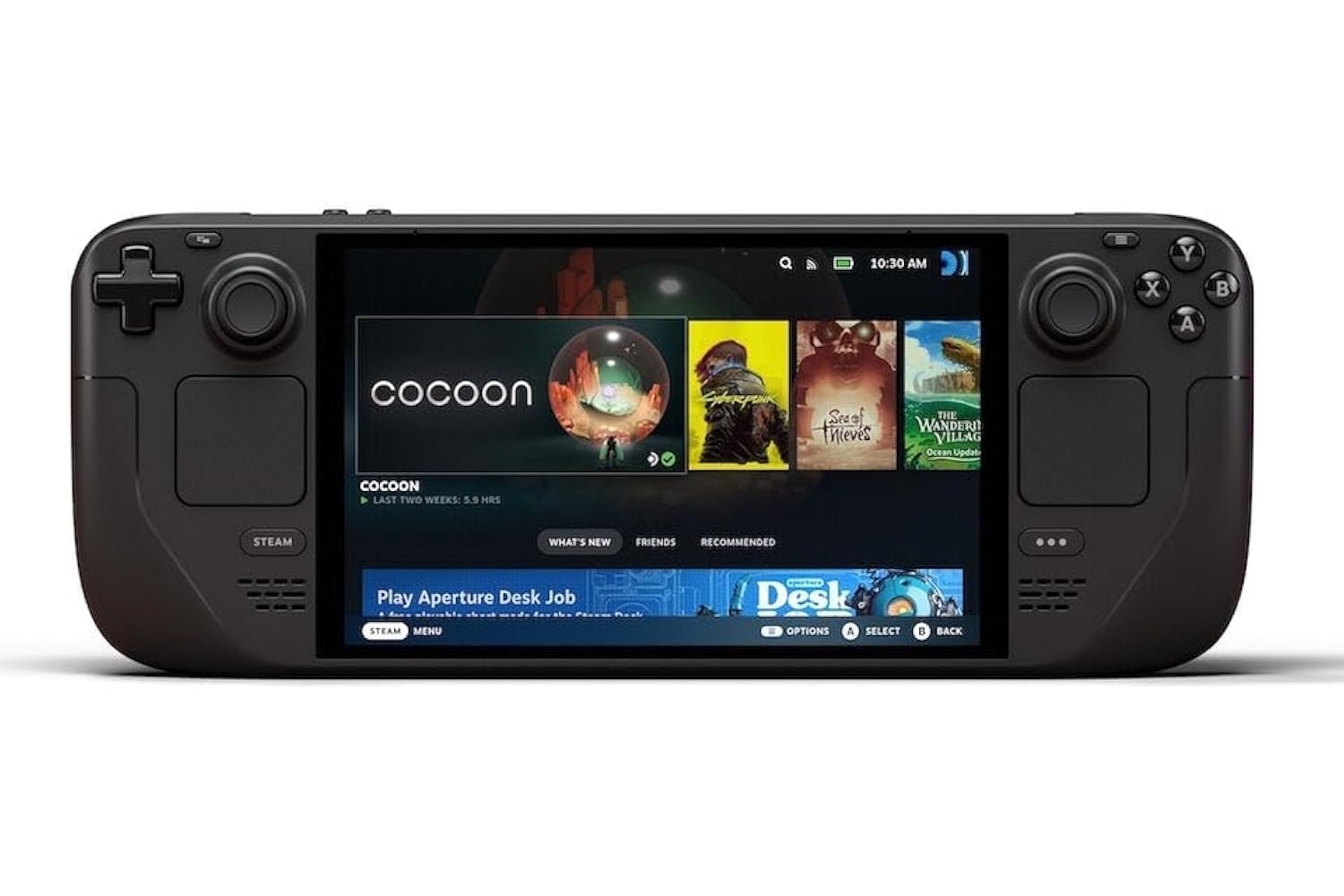
Whether you’re a seasoned PC gamer, a new enthusiast, or a remote worker looking for a versatile mobile solution, the Steam Deck offers a fantastic blend of power and portability. This guide will walk you through the essentials of getting started, from downloading your favorite games to ensuring your precious save data is safe and sound, and even how to easily expand your storage.
—Getting Started with Your Steam Deck
Once you unbox your Steam Deck and power it on, you’ll be guided through an initial setup process. This typically involves:
- Connecting to Wi-Fi: Choose your network and enter the password to get online.
- Logging into your Steam Account: You’ll need an active Steam account. You can log in by scanning a QR code with the Steam mobile app or by manually entering your username and password using the Steam Deck’s touch screen or trackpads and on-screen keyboard.
- System Updates: The Steam Deck frequently receives updates to improve performance and stability. Ensure you download and install any available updates before diving into games. A yellow exclamation mark over the Settings gear icon usually indicates an update is ready.
How to Download Games on Your Steam Deck
Downloading games on your Steam Deck is straightforward, especially if they’re from your Steam library.
Accessing the Steam Store and Library:
- Press the Steam button on your Deck (the one with the Steam logo on the bottom left).
- This will bring up the main Steam menu. You can navigate to the Steam Store to browse and purchase new games, or directly to your Library to install games you already own.
Downloading a Game:
- From your Library: In your Library, find the game you want to download. If it’s not installed, you’ll see an “Install” button. Select it.
- From the Store: If you’re purchasing a new game, once the purchase is complete, it will be added to your Library. Navigate to your Library and select “Install.”
- Choose Installation Location: If you have an SD card installed, the Steam Deck will usually ask you where you’d like to install the game (internal storage or SD card). Choose your preferred location.
- Monitor Download: You can monitor the download progress by pressing the Steam button and navigating to the “Downloads” section. Once the download and installation are complete, the game will be ready to play!
Installing Non-Steam Games (Advanced):
The Steam Deck is a versatile PC, meaning you can also install games and applications not found on the Steam Store. This requires switching to Desktop Mode.
- Switch to Desktop Mode: From the Steam menu, select Power, then Switch to Desktop.
- Once in Desktop Mode, you’ll have a more traditional Linux desktop environment.
- Add Non-Steam Game to Steam:
- Open the Steam client from the desktop.
- In the bottom-left corner of the Steam client, click “Add a Game” then “Add a Non-Steam Game…”.
- Browse for the executable file (.exe) of the game or launcher you want to add. For Windows games, you’ll often need to enable Proton compatibility in the game’s properties (right-click the game in your Steam Library, go to Properties > Compatibility, and check “Force the use of a specific Steam Play compatibility tool”).
- Once added, the non-Steam game will appear in your Steam Library under the “Non-Steam” tab when you return to Gaming Mode.
- Note on Compatibility: While Steam’s Proton compatibility layer is excellent, not all non-Steam games will work perfectly out of the box. Websites like ProtonDB can provide community-sourced compatibility information and tweaks.
Expand Your Storage with a MicroSD Card
Running out of space for your ever-growing game library? The Steam Deck makes it easy to expand your storage with a high-capacity microSD card. We recommend the SAMSUNG EVO Select 1TB MicroSD Card for its speed and reliability.
Star Rating: 4.8 out of 5 Stars (Click to see on Amazon)
How to Install and Format a MicroSD Card:
- Insert the MicroSD Card: Locate the microSD card slot on the bottom edge of your Steam Deck. Carefully insert your SAMSUNG EVO Select 1TB MicroSD Card until it clicks into place.
- Format the Card:
- Once inserted, the Steam Deck should automatically detect the new card.
- Press the Steam button, then navigate to Settings > System.
- Scroll down and select “Format SD Card.”
- Confirm your choice. This process will format the card for optimal use with your Steam Deck, so ensure the card is empty or you’ve backed up any data on it.
- Ready to Use: After formatting, the microSD card will be ready to store games and other data. When downloading new games, the Steam Deck will give you the option to install them directly to the SD card.
How to Back Up Your Data on Steam Deck
Protecting your game saves and data is crucial. The Steam Deck offers several ways to back up your information.
Steam Cloud Saves (Recommended for Steam Games):
Most Steam games support Steam Cloud, which automatically syncs your save files to Valve’s servers. This means your progress is safe even if something happens to your Steam Deck, and you can seamlessly pick up where you left off on another PC.
- To check or enable Steam Cloud for all games:
- Press the Steam button.
- Go to Settings.
- Select Cloud.
- Ensure “Enable Steam Cloud Synchronization for applications that support it” is toggled On.
- To check or enable Steam Cloud for individual games:
- From your Library, select a game.
- Choose Properties (the gear icon).
- Under the General tab, look for the “Steam Cloud” section and ensure “Keep games in the Steam Cloud” is checked.
- Important: For cloud saves to sync properly, always ensure your Steam Deck is connected to the internet and allow a moment for syncing after you finish playing before putting the Deck to sleep or shutting it down.
Manual Backups (for Non-Steam Games and Full System Backups):
For non-Steam games or if you want a complete backup of your Steam Deck’s data and settings, you’ll need to use Desktop Mode.
- Switch to Desktop Mode: From the Steam menu, select Power, then Switch to Desktop.
- Accessing Save Files:
- Open the Dolphin File Explorer (usually found on the taskbar).
- To see hidden files, click the “hamburger” menu (three horizontal lines) in the top right and select “Show Hidden Files.”
- Most Steam game save files (and data for non-Steam games added through Steam) are located in:
/home/deck/.local/share/Steam/steamapps/compatdata/followed by a unique game ID number. Inside this folder, you’ll typically find apfx/drive_c/users/steamuser/Documents/path where game-specific save folders are located.
- Backing up to an External Drive:
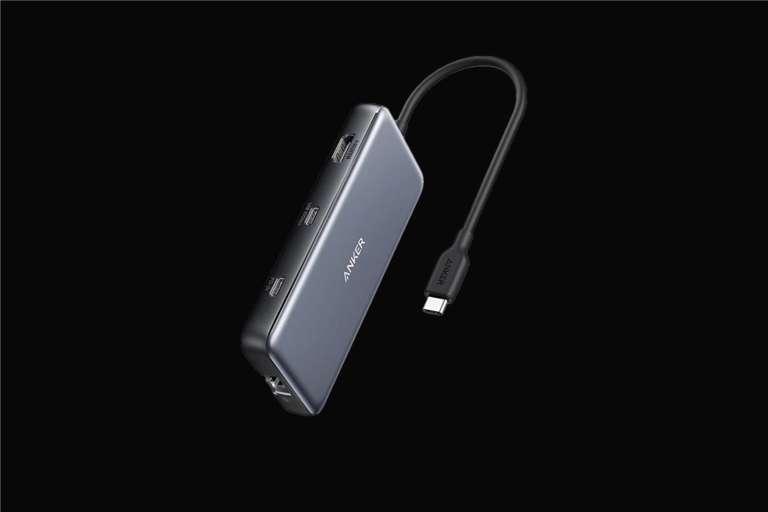
- Connect a USB drive or external hard drive to your Steam Deck (you may need a USB-C hub).
- In the Dolphin File Explorer, you can copy the relevant folders (e.g., specific game save folders or even the entire
compatdatafolder) to your external drive.
- Full System Backup (Advanced):
For a complete system backup, including your SteamOS installation and all user data, you can use the built-in “Backup and Restore” functionality or third-party tools. This is generally more involved and might require booting into a recovery environment. For most users, relying on Steam Cloud for Steam games and manually backing up critical non-Steam game saves is sufficient.
By following these steps, you’ll be well on your way to enjoying a vast library of games and ensuring your progress is always safe, no matter where your Steam Deck takes you!